WHITEBOARD

Whiteboard – main screen
1. Work space - this is the place where you can draw on the whiteboard or on a file (after choosing this from the storage and sharing it on the screen)
2. Drawing tools menu - gives the
opportunity to choose from different kinds of tools for drawing, inserting shapes etc. (see more in Drawing tools menu below)
3. Components menu - gives access to all the components
4. Full screen
Drawing tools menu
1. Cursor options – you can enable the cursor and choose what style it will be (see additional settings in Cursor submenu)
2. Pick a tool – you can pick a tool for drawing or inserting shapes
in the work space or on the file which you are working on (see Pick a tool submenu)
3. Pick a stroke colour – picks a colour for drawing
4. Pick a fill colour – picks a colour for
filling shapes if you are inserting any
5. Size – you can choose the thickness of the line that you are drawing with
6. Eraser – it’s used for erasing certain lines/ shapes
7. Clear all – pressing this will erase all the drawings which are made
8. Download/ export – gives the opportunity to download and save the file that you were working on
9. Grid – makes the workspace
with grids
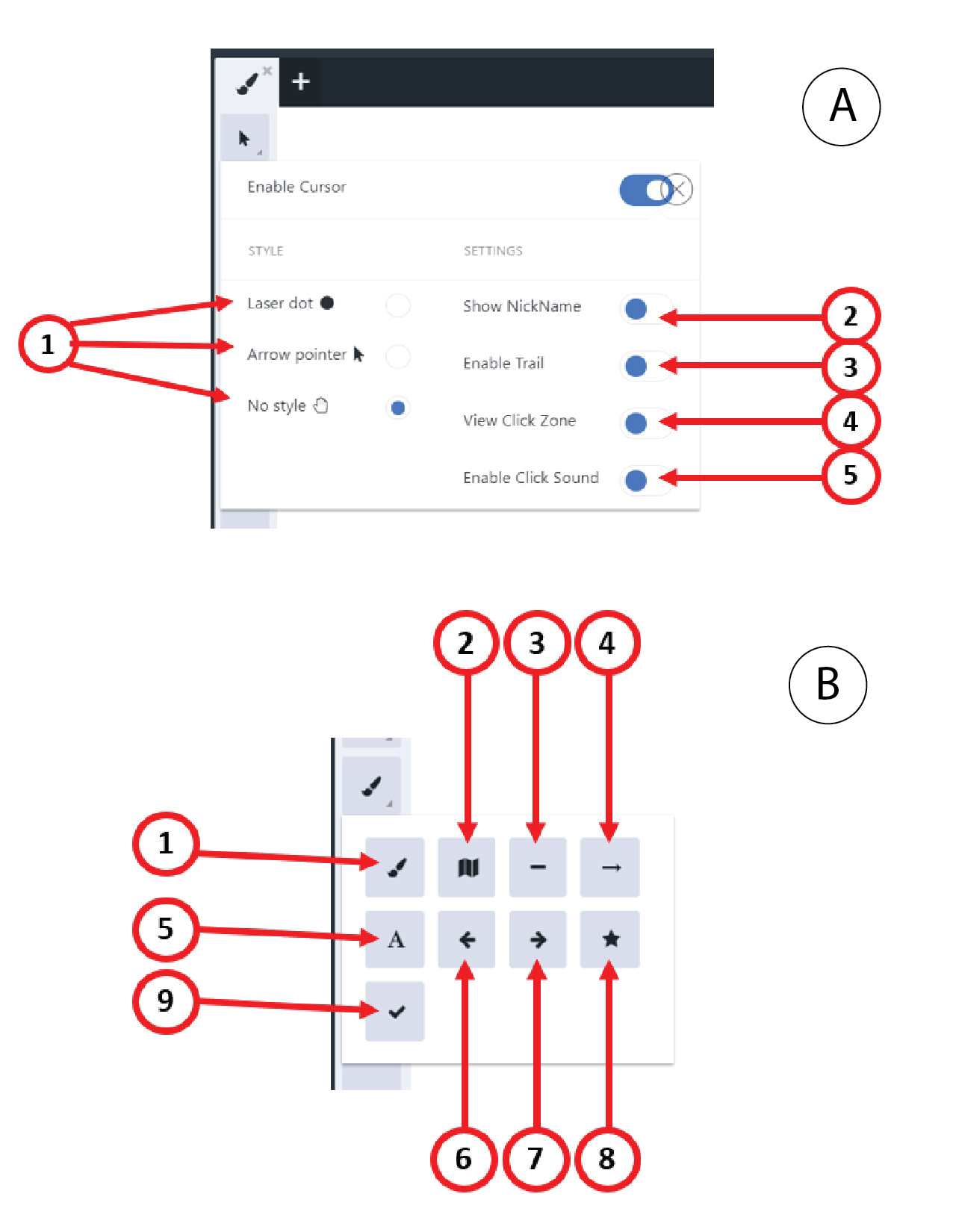
Cursor submenu
1. Cursor style – you can choose from three different styles of the cursor
2. Show NickName – when it’s enabled, next to the cursor will be visible the e-mail or nickname of the person who
is pointing
3. Enable trail – shows the movement of the cursor to the attendees
4. View click zone – by enabling this option, the cursor is getting bigger when clicking and the attendees
can see where the presenter is clicking
5. Enable click sound
Pick a tool submenu
1. Pen
2. Highlighter
3. Line
4. Arrows – inserting small arrows
5. Text – you can insert a box at a chosen place on the whiteboard
and write text in it
6. Left arrow stamp
7. Right arrow stamp
8. Star stamp
9. Checkmark stamp