WEBINAR & MEETING
ROOM INTERFACE
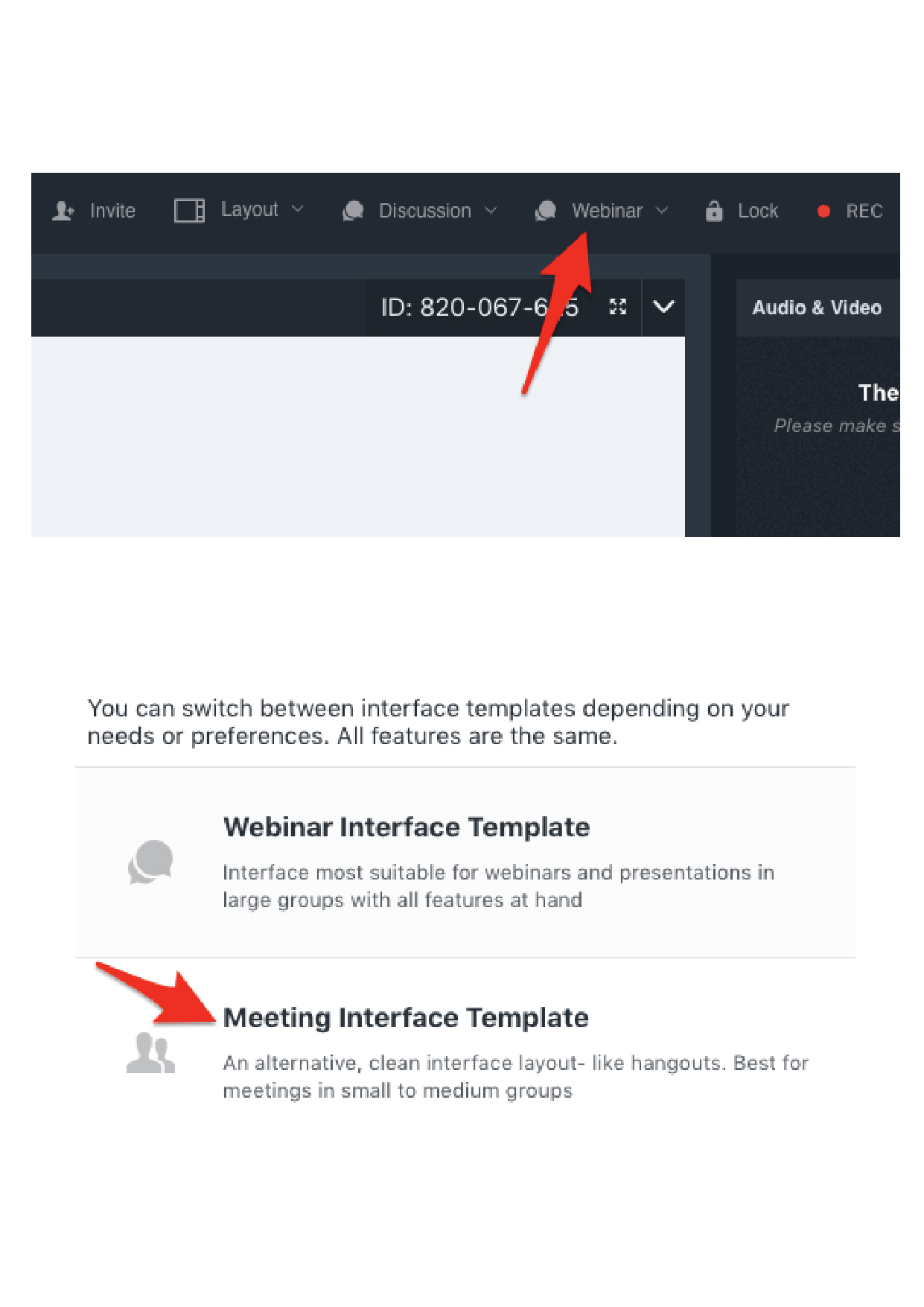
Meeting interface template
1. When you are in the room click on the “Webinar” in the upper menu bar.
2. Click on the “Meeting interface template” to choose the clean interface layout with full screen camera.
3. In the left picture you will see how to find menu options in the meeting interface template.
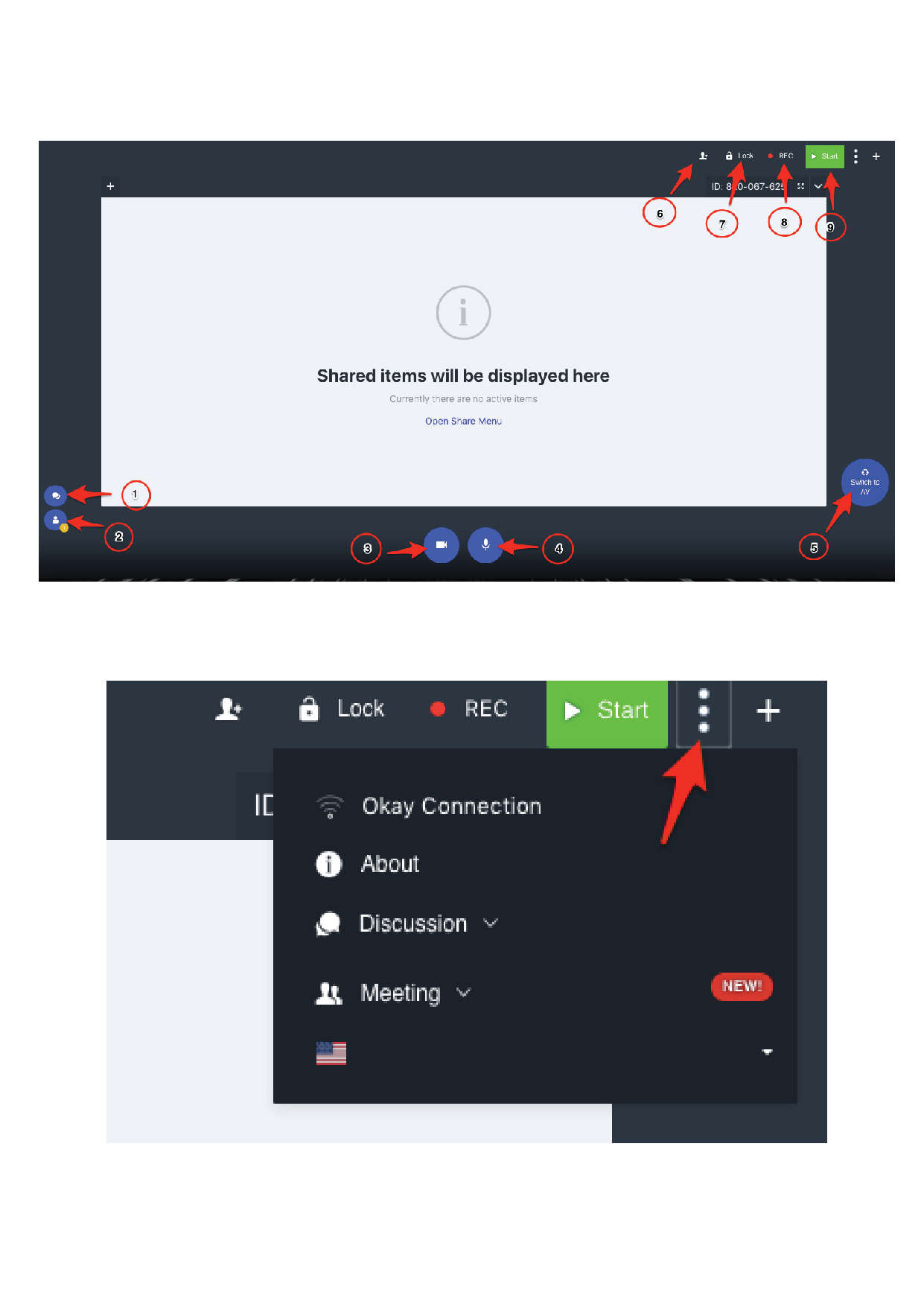
ITEMS
1. Chat menu
2. Participants list
3. Turn on audio & video
4. Turn on audio
5. Switch to AV – full screen camera
6. Invite participants
7. Lock the room
8. Record the meeting
9. Start session
Click on the three vertical dots to check the connection, see the information about the meeting, change the room mode or change the room template from meeting interface template to webinar interface template. You can also change
language of the room here.
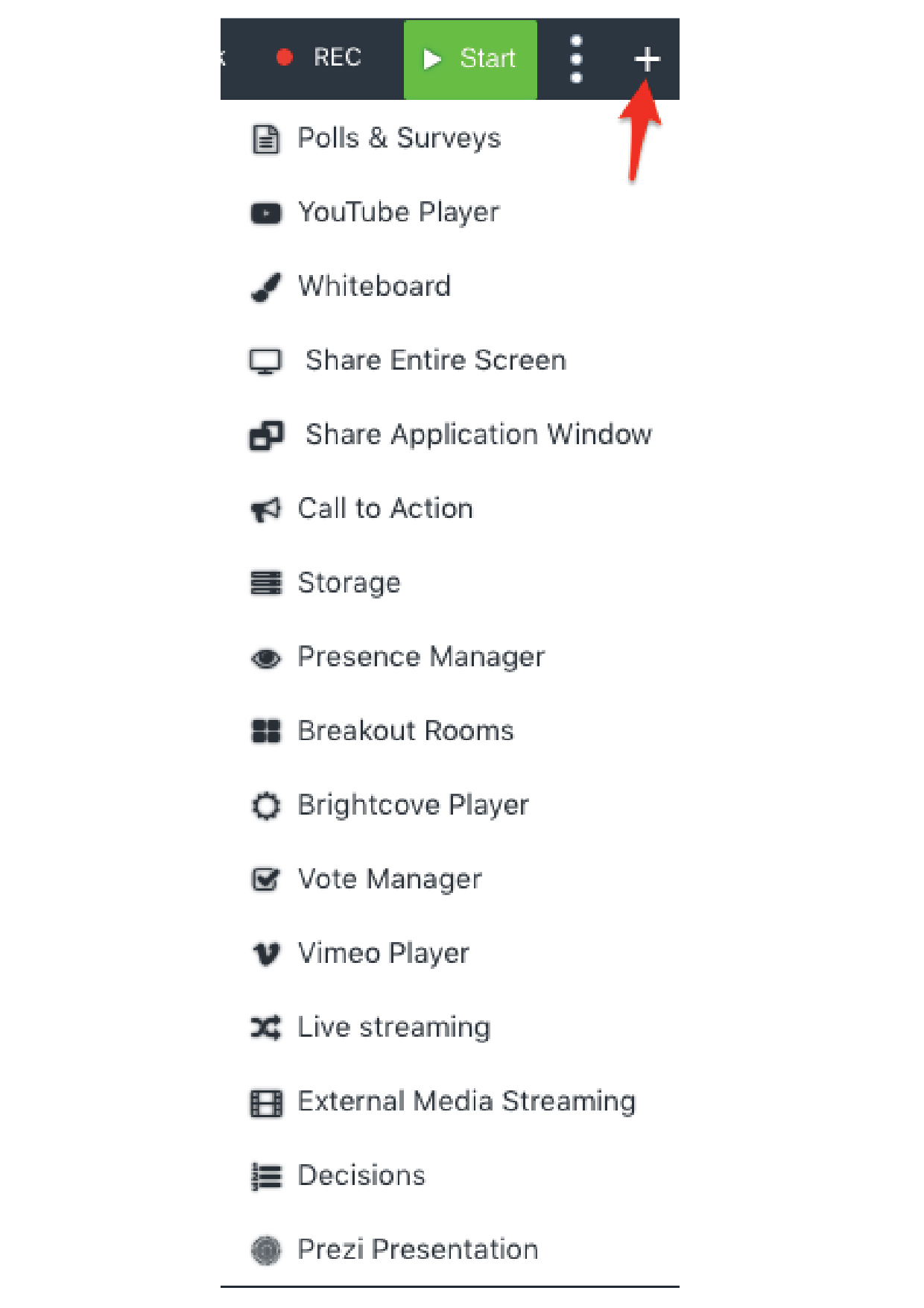
Click on “+” to find all the rest of the App functionalities.